Friday, 1 April 2016

// // Leave a Comment

10 Google Tips For Online Safety

The world is getting smaller and smaller because of people doing more online stuffs than before. So, it is very important to be safe and secure while using web. Google is providing you these amazing 10 tips to increase your online safety.


1. Browse without a trail of cookie crumbs

You can go online without leaving the records of the sites you visit or the files you download.

10 Google Tips For Online Safety


In the Chrome menu select 'File' and then 'New Incognito Window'. On the Chrome app, touch the menu icon and then 'New Incognito' tab.

2. Sweep away unwanted software

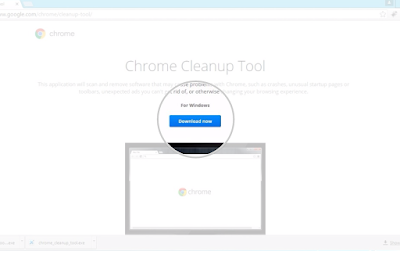
Use the Chrome Cleanup Tool to sweep your PC of unwanted software.

10 Google Tips For Online Safety


Visit https://www.google.com/chrome/cleanup-tool/ to download the tool. Open up 'chrome_cleanup_tool.exe' and install it on your computer.

3. Debut a fresh password

Protect your account by changing your password regularly.

10 Google Tips For Online Safety


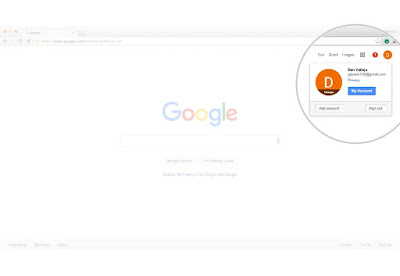
Sign into your Google account, click your profile icon and then 'My Account'.
Under 'Sign in & security' click 'signing in to Google'.
Click 'Password' to change your password.

4. Dust off your privacy settings

Choose the privacy settings that are right for you with a quick Privacy Checkup.

10 Google Tips For Online Safety


Sign into your Google account and click your profile icon and select 'My Account'.
Locate the Privacy Checkup and click 'Get Started' when you are ready to begin. Remember, you can change these settings as often as you like by repeating your checkup.

5. Keep the hackers out by updating your chrome browser

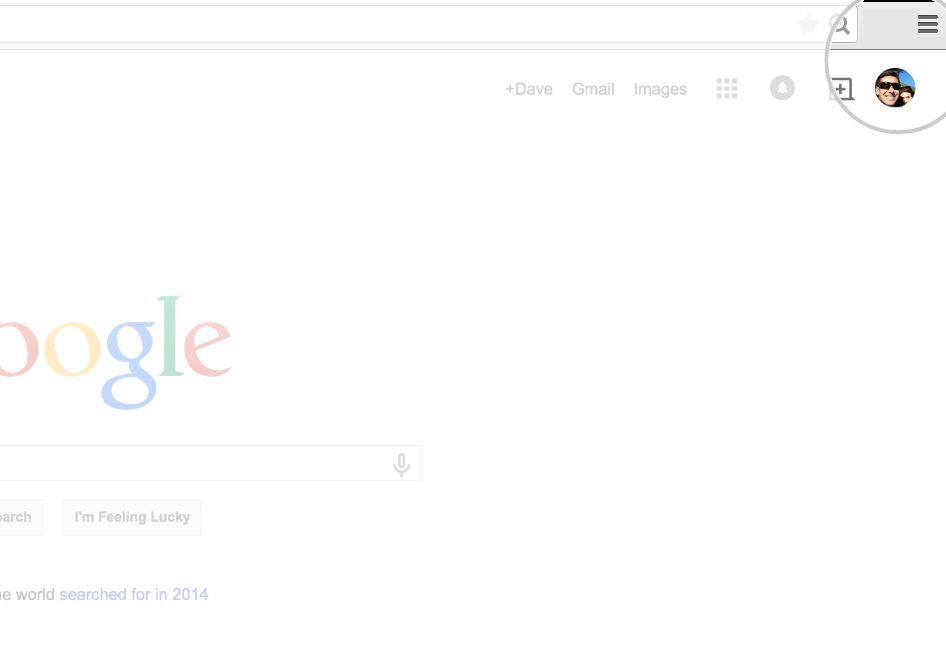
Update your browser to ensure you have the latest and greatest safety features.
10 Google Tips For Online Safety


Google Chrome automatically updates to the latest version every time you start it up, so you can get the most up-to-date security protection without any extra work. To double check, open Chrome and access the Chrome menu by clicking on the icon in the top right.
Click on 'About Google Chrome' in the drop down menu. The current version number is the series of number beneath the 'Google Chrome' heading.
Chrome will also check for updates when you're on this page. Click 'Relaunch' to apply any available update. Congratulations, you've just given your browser a clean bill of health!

6. Install a new lock only you can pick

Secure your phone using a PIN, password, pattern or even your face.

10 Google Tips For Online Safety


On Android, open your device's 'Settings' menu and under 'Personal', touch 'Security'.
Under 'Device security' touch, 'Screen lock'.
Touch the screen lock you'd like to use and follow the instructions.

7. Make intruders dance the 2-steps

Add extra account protection with 2-step verification.

10 Google Tips For Online Safety


Sign into your Google account, click your profile icon and then 'My Account'.
Under 'Sign in & security' click 'signing in to Google'.
Click '2-step verification' in the box on the right and then click 'Start setup'.
Follow the step-by-step setup process.

8. Get a security tuneup

Manage your security settings in just a few minutes.

10 Google Tips For Online Safety


Sign into your Google Account, click your profile icon, and select 'My Account'.
Locate the security checkup and click 'Get Started' when you're ready to begin.

9. Say goodbye to viruses

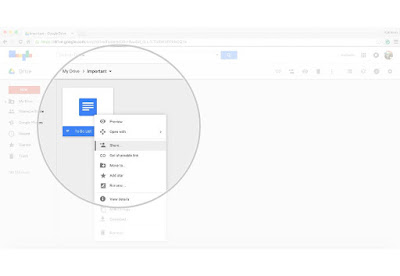
Use Google Drive to scan files for viruses before downloading or sharing.

10 Google Tips For Online Safety


Share or download any file stored in Google drive. If a virus is detected, the action will be blocked and a warning will be displayed.

10. Wipe your device clean, wherever you left it

Remotely lock, locate, ring, or wipe your Android device from wherever you are.

10 Google Tips For Online Safety


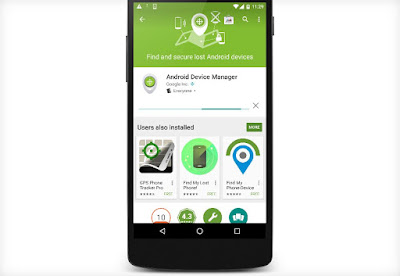
Download and install the Android Device Manager app from Google Play. Open the app and sign into your Google account. From a phone, swipe along the bottom of the screen to see and select your devices. From a tablet, touch the arrow next to the device to select it. Android Device Manager will allow you to locate, lock, ring and or wipe your selected device from anywhere.

So those are 10 best tips from Google just to increase your online security. I hope you enjoyed it.

Thanks For Reading!!
Read More

Monday, 15 February 2016

// // Leave a Comment

How To Create a Strong and Secure Password

Most of the people don’t care about their account’s security and passwords. They try to make their passwords as easy as possible so that they can remember it easily in future.  If you are using web for a while, then you must aware about passwords and its importance.  It is very important to make your password strong because there are so many stories available of hackers who have accessed sensitive information of other people and misused that information in one way or the other.

How To Create a Strong and Secure Password


It is necessary for us to follow certain precautions in creating a password for any type of personal account. Below are some useful tips for making a strong password for you.

Use different passwords for different accounts

Studies show that a 75% percent person uses the same passwords for different types of accounts. The password for their Gmail is also the password of their Facebook, Twitter and Paypal account. People uses this thing because they are so lazy in creating different password and using the same seems easy to remember for them. But, this is the biggest mistake and creates a big space for hackers to get into your account. Getting one account hacked means your every account hacked. 

Sometimes, it also happens that you share the password of any of your account which doesn’t contain any sensitive details. But, having the same password for others account too, makes them vulnerable to get hacked easily.

You should avoid using same passwords and secure your personal data from others.

Use password management software

As explained above that it is necessary to make different passwords for different types of account, managing such a long list of passwords is a tedious job for a normal person. The solution to this problem is that you should store all the passwords at a single secured place.

There are so many software available which can be used to store all the usernames and passwords of different websites which can be saved and accessed by a single password. In this way, you not need to remember all the passwords, only one password is sufficient to access all your accounts.

Avoid Patterns

People often use patterns to remember passwords. For example, if they have a password ‘facebook123’ for their facebook account and it is very likely that they will use ‘twitter123’ for twitter and ‘instagram123’ for their Instagram account. In this way all your accounts are on risk because having any of your account hacked makes other account hackable too.

So it is strongly advised that you should avoid using any type of patterns between any 2 passwords.

Change your password frequently

Keeping the same password for a long time increases the chances of someone figuring it out. People usually feel lazy (even me too) in changing their passwords because they have to remember it again.  But, if you change your password on a regular basis, say in every 3 months, then your account will be secured from hackers because it is almost impossible to find new password each time you change it. Also, the accounts which may be already hacked can get recovered by changing password frequently.

Avoid common passwords

Anything which can be related to you can be said as a common password. Common passwords can be your birthplace, your date, your pet’s name and many more. If you are using passwords like ‘12345’ or ‘qwerty’ (see in your keyboard) then your account may be on a risk.

Make Strong Security Question

People generally don’t care about security question which is required to recover a forgotten password and this is the biggest advantage to hackers. Having a little personal information, one can easily hack your account. 

Most of the time it is not your fault because the security questions are provided by websites only and they are so easy questions like what is your mother’s maiden name? , Your birthplace name, your pets name etc.  Hackers try these questions and it is very easy to answer these questions because they can be easily known to anyone.

The best solution for this problem is that you should give a wrong answer to these questions. There can be only 1 correct answer for a question but there is infinite number of wrong answer for the same question. So you have to use this technique to protect your account. Just select any of the security questions and give a wrong answer to it. Giving a irrelevant answers is even better. For example, suppose the security question is ‘what is name of your best friend?’ and my answer is ‘fingers’ which is not related to it. It is almost impossible for anyone to figure out it.

Make a Strong Password

After every possible step taken to protect your account, it is necessary to create a very strong password for your account. Following are some simple tips which will help you in creating a strong and secure password.
  • Make a password of at least 10 characters. Less than this is not considered as a strong password
  • No matters how long your password is, if it is in English dictionary then it is not a strong password
  • Always try to include both numbers and alphabets in your password
  • Use a randomly typed password i.e., type 15 to 20 characters randomly on your keyboard and use it as your password
  • Make password from your own life, for example, ‘My children’s name are Michael, David, Steven and Mitchell’ will make my base password as ‘midastmi’
  • Including numbers in the above password will make them even stronger like here I added their ages also. So password becomes ‘mi12da25st15mi8’.
  • You can further include special characters to make it more secure.For example, mi#12da#25st#15mi#8

These are some of the simple and useful tips in protecting your account and its personal data from the hackers. I hope you liked it. Don’t forget to share this with your friends and comment your personal views in the comments below. 
Thanks for reading 


Read More